It is very easy to resize bulk photos on Windows XP. You just need to install an add-on called PowerToys Image Resizer. It is free and created by Microsoft. Later after install the program, you just need to right click on the pictures and then choose the new picture size.
But, how if you need to resize photos on Vista? There is no add-on (from Microsoft) until now that suitable and easy to install like PowerToys for Vista.
In this post, I'll share how I resize my pictures on my Vista. It is done by two way. You can pick either one that suit to you. First way to do this is by using resources that already installed on Windows: Microsoft Outlook and Windows Explorer.
The second way is done by using a program called Picture Resizer 3.0. This is very simple yet powerful program. All you have to do is download this PhotoResize400.exe and save it somewhere that easy for you to access (ex. on your desktop). Then you just need to drag and drop JPG files or even folders to PhotoResize icon. This tool then will resize you images and save it to original folder. Name of the new pictures will be based on the original name, only the program will alter it with number indicates the size of the picture.
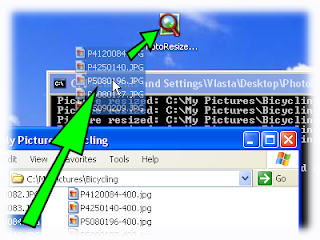
The advantages using this program than using Outlook is, while resizing the picture, this program will also do gamma correction. It also allow you to pick the size you want, even it is not an usual size (if you using outlook, you have to follow what is provided by the program). If you want to read more detail on how to use this program, I'll post more detail information on separate post.
Pic taken from: http://www.rw-designer.com/picture-resize
But, how if you need to resize photos on Vista? There is no add-on (from Microsoft) until now that suitable and easy to install like PowerToys for Vista.
In this post, I'll share how I resize my pictures on my Vista. It is done by two way. You can pick either one that suit to you. First way to do this is by using resources that already installed on Windows: Microsoft Outlook and Windows Explorer.
- Open photos folder, and select the photo you want to resize.
- Right click, send to and click on mail recipients.
- New window will pop-up, ask you the size of the photo.

- Afterwards, you can click on single photo and do save as or do select all (ctrl+A) then right click and choose copy

- Create a new folder on your windows explorer, and do paste (ctrl+V). It is simple and fast. You don't need to send the email, just discard it after you finish.


The second way is done by using a program called Picture Resizer 3.0. This is very simple yet powerful program. All you have to do is download this PhotoResize400.exe and save it somewhere that easy for you to access (ex. on your desktop). Then you just need to drag and drop JPG files or even folders to PhotoResize icon. This tool then will resize you images and save it to original folder. Name of the new pictures will be based on the original name, only the program will alter it with number indicates the size of the picture.

The advantages using this program than using Outlook is, while resizing the picture, this program will also do gamma correction. It also allow you to pick the size you want, even it is not an usual size (if you using outlook, you have to follow what is provided by the program). If you want to read more detail on how to use this program, I'll post more detail information on separate post.
Pic taken from: http://www.rw-designer.com/picture-resize


